Sync market data to the analytics database
This guide assumes you finished Getting Started. After it, two plugins are already running and syncing your broker's market data into the database:
- Ticker Universe
Saves every contract your broker gives you access to into the database: stocks, options, and futures. When it is running, the plugin list shows Connected.

- Quote Sweep
Once the universe is synced, Quote Sweep loops through every contract and saves its latest live quote to the database. Each pass starts over from the first contract. While it runs, the plugin list shows Fetching and its progress through the current pass.

Interactive Brokers: set up the Client Portal Gateway
Ticker Universe needs the IBKR Client Portal Gateway to fetch the full contract list.
- Install a Java runtime.
- Download the Client Portal Gateway from IBKR (Web API quick start).
- Unzip it into
~/Library/Application Support/deltaforge/plugins/user.ibkr_provider/data - Open the IBKR Status Panel. Check that Gateway Install shows Discovered and Java JVM shows Found.
- Click Open login and sign in. When Session shows Authenticated, the gateway is ready.
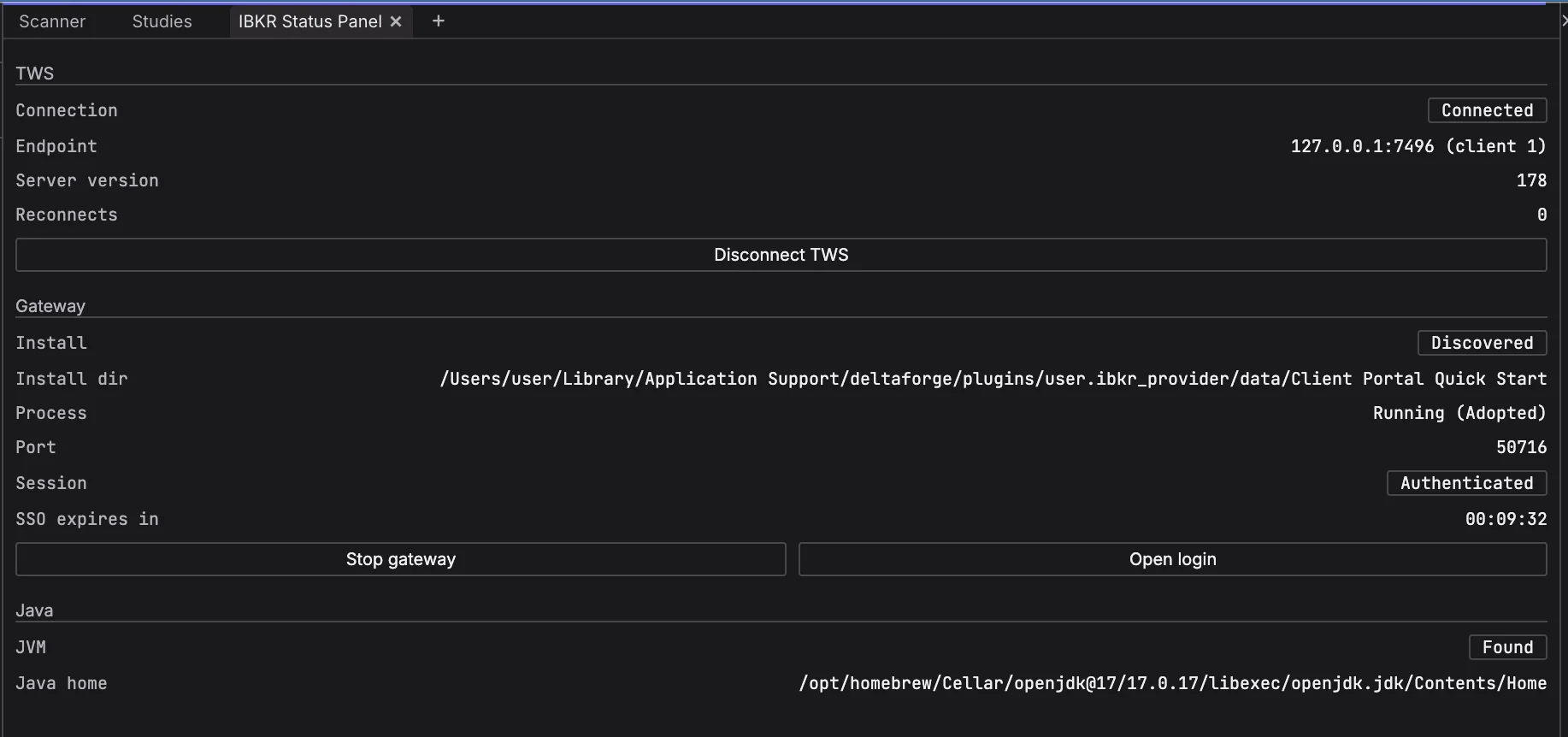
When the gateway signs in with the same IBKR username as a running TWS session, it takes over that username's market data connection, and TWS stops receiving market data. The DeltaForge IBKR plugin gets market data through TWS, not through the gateway, so reclaim the connection in TWS by clicking reconnect. The gateway keeps serving the contract list afterwards. Creating a second IBKR username dedicated to the gateway avoids the takeover.
Charles Schwab
No extra setup. Ticker Universe and Quote Sweep work once the Schwab plugin is connected.
Sync bulk historical data
Plan for disk space. Daily price history for stocks and macro data is relatively small. Intraday data and bulk options data are what make the database large: expect 500 GB or more if you sync them. If your Mac's internal drive doesn't have that much free space, put the database on a fast external SSD or flash drive.
Universe History Sync
Universe History Sync fetches daily price history through your broker for every contract in the ticker universe, plus implied volatility where the contract has listed options. It runs every 12 hours, and an agent can also start it on demand.
It is off by default. To start it:
- Open Settings, then Plugins, then Universe History Sync.
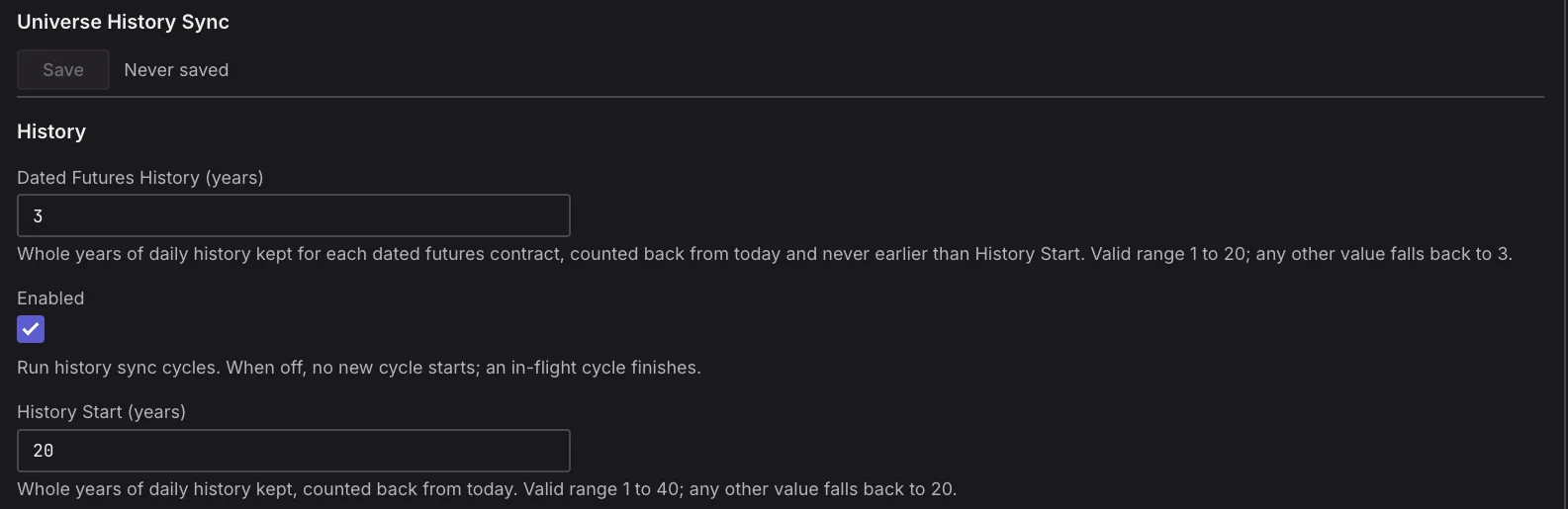
- Under History, turn on Enabled.
- Set Stock Bar Type to match your broker: Split and Dividend Adjusted (IBKR), the default, or Split Adjusted (Schwab).
- Optionally, change how far back it goes. History Start (years) is the years of daily history kept for each contract: any whole number of 1 or more, default 20. Dated Futures History (years) is the years kept for each dated futures contract: any whole number of 1 or more, default 3, and never earlier than History Start.
- Click Save.
Schwab users: Schwab's historical stock bars are split adjusted only, not dividend adjusted, and Schwab has no historical bid/ask quotes or short borrow costs. That makes Schwab data close to impossible to build a valid backtest with. For backtesting, get access to a more complete set of historical data through another provider.
Move the database to an external drive
- Open Settings, then Plugins, then DuckDB Analytics Store.
- Set Database Path to a folder named exactly
deltaforge_duckdb_dataon the external drive, for example/Volumes/external-drive1/deltaforge_duckdb_data. The macOS sandbox only lets the database live inside a folder with that name. - Click Save, then quit DeltaForge.
- Move your existing database file,
analytics.duckdb, from~/Library/Application Support/deltaforge/plugins/user.duckdb_store/data/deltaforge_duckdb_data/into the new folder. If ananalytics.duckdb.walfile sits next to it, move that too. - Start DeltaForge.

Sync free economic and market data
The FRED bundle installs with your broker plugins during Getting Started. Every other free data bundle installs from the Store:
- Open the Store tab, then Browse.
- Select the bundle, for example BLS.
- Click Subscribe, then Install.
Each free data bundle has two plugins:
- Provider: serves the source's API and bulk exports.
- Sync: loads the bulk data from the provider into the analytics database.
Sync plugins are off by default. To start one, open Settings, then Plugins, then the Sync plugin. Turn on Enabled, then click Save. Some sources also need something set in the Provider's settings first.
To see a sync's progress, open the Plugin Health tab. Each Sync plugin's row has a status line that says what it is loading right now.

| Sync plugin | What it loads | What its Provider needs |
|---|---|---|
| BEA Sync | National, industry, regional and international accounts | Nothing for the bulk files (national, fixed assets, regional, industry). An API Key, free from BEA, is needed for the international and multinational datasets. |
| BLS Sync | Whole surveys: CPI, employment, wages, PPI, JOLTS, productivity, ECI and trade prices, with revision history | A Contact Email (Bulk Downloads). No API key is needed. |
| Census Sync | Economic Indicator time series (21 programs) | A Census API Key, free from Census. |
| CFTC Sync | Weekly Commitments of Traders reports per market | Nothing |
| EIA Sync | Energy bulk datasets: series, observations and categories | Nothing |
| FDIC Sync | Bank directory and quarterly bank financials, linked to tickers | Nothing |
| FFIEC Sync | Per-bank Call Report detail, plus optional UBPR ratios | Nothing |
| Fiscal Data Sync | Every U.S. Treasury Fiscal Data table, with revision history | Nothing |
| FRED Sync | Curated FRED series plus full ALFRED vintage history | A FRED API Key, free from FRED. |
| OCC Market Data Provider | Options and futures volume, open interest, series, FLEX and position limit reports | Nothing |
| PortWatch Sync | 18 port and trade data layers | Nothing |
| SEC EDGAR Sync | Financial statements, insider data, optional 13F and N-PORT, and company submissions | A Contact (User-Agent). SEC EDGAR Sync also needs Ticker Universe running. |
OCC is the exception: its provider and sync are the same plugin, OCC Market Data Provider, so there is no separate Sync plugin.
SEC EDGAR Sync's optional Form 13F and N-PORT data is large: about 460 MB and 23 million rows per quarter. See Plan for disk space above before turning it on.
Once data is syncing, you can explore it with Scanner and Studies, or ask the in-app agent to query the database directly.
Next: explore your data with Scanner and Studies